Performance Budgets for Vibe-Coded Frontends: Set, Measure, Enforce
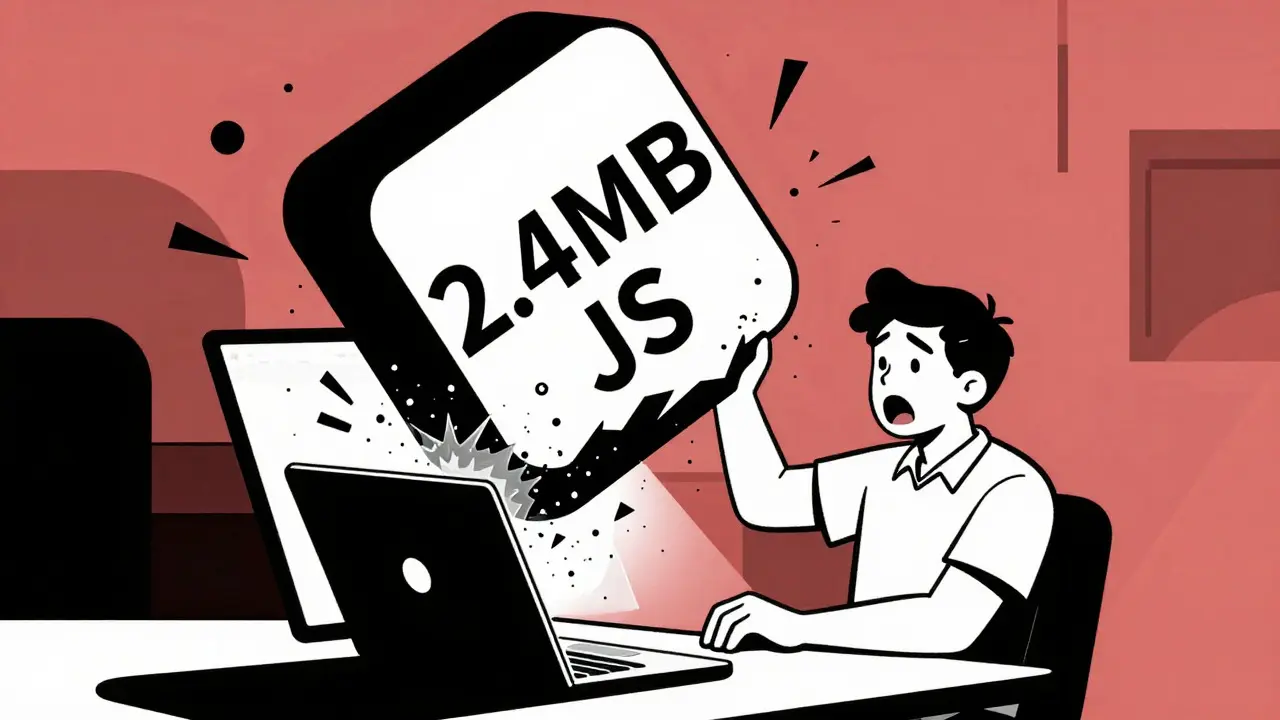
You just spent twenty minutes describing a perfect dashboard layout to an AI assistant. It generated the code in seconds. The interface looks sleek, the animations are smooth, and you feel like a genius. Then you open the browser’s developer tools. The initial JavaScript bundle is 2.4 megabytes. The Largest Contentful Paint (LCP) takes six seconds. Your "vibe-coded" masterpiece is effectively unusable on mobile networks.
This is the new reality of frontend development. As AI-assisted coding (often called "vibe coding") becomes standard, developers can generate complex UIs faster than ever before. But speed of creation often comes at the cost of optimization. Without guardrails, AI tends to prioritize functionality over efficiency, dumping heavy libraries and unoptimized assets into your project.
Enter the performance budget. Think of it not as a restriction, but as a quality control filter. A performance budget is a set of hard limits on metrics that affect site speed-like total page weight, load time, or the number of HTTP requests. If your code exceeds these limits, the build fails or alerts you immediately. For teams relying on AI to write code, performance budgets are no longer optional; they are the only way to ensure that rapid generation doesn't lead to catastrophic user experience.
Why Vibe Coding Needs Hard Limits
When you ask an AI to "build a responsive image gallery," it will likely give you what you asked for. It might import a full-featured library like React or Vue.js components that include features you never intended to use. It might embed high-resolution images directly into the HTML instead of using lazy loading. It works perfectly on your fast Wi-Fi connection.
But real users don't always have fast Wi-Fi. According to data from HTTP Archive, the median size of a modern website has been creeping upward for years. When AI accelerates this trend by making it easy to add feature-rich but heavy code, the problem compounds quickly.
A performance budget acts as a circuit breaker. It forces the AI-or the human reviewing the AI's output-to make trade-offs. If the budget says "Total JavaScript must be under 150KB," the developer has to decide: Do we strip out the unused animation library? Do we switch to a lighter alternative? This shifts the focus from "Does it work?" to "Does it work efficiently?"
Setting Realistic Performance Budgets
The biggest mistake teams make is setting budgets based on guesswork rather than data. You need to know where you stand before you decide where you want to go. Here is how to establish baseline metrics that actually matter.
Start with Core Web Vitals. These are Google’s specific metrics for user experience, and they directly impact search rankings. Your budgets should align with the "Good" thresholds defined by Google:
- Largest Contentful Paint (LCP): Under 2.5 seconds. This measures how long it takes for the main content to load.
- Interaction to Next Paint (INP): Under 200 milliseconds. This measures responsiveness when a user clicks or taps.
- Cumulative Layout Shift (CLS): Under 0.1. This measures visual stability (does the page jump around?).
Beyond user-centric metrics, you need technical constraints. These are easier to enforce automatically during the build process:
| Metric Category | Specific Metric | Recommended Limit | Why It Matters |
|---|---|---|---|
| Resource Size | Total Page Weight | < 1.5 MB | High data costs and slow loads on 3G/4G networks increase bounce rates. |
| Resource Size | JavaScript Bundle | < 175 KB (gzipped) | JS parsing blocks rendering. Heavy JS kills interactivity. |
| Quantity | HTTP Requests | < 50 | Each request adds latency. Fewer requests mean faster pages. |
| Quality Score | Lighthouse Performance | > 90/100 | A holistic score that combines multiple best practices. |
If you are starting from scratch, pick two metrics to begin with. Total page weight and LCP are usually the best starting points because they provide immediate feedback on both asset management and render-blocking resources.
Measuring Performance in the Workflow
Setting the budget is the easy part. Measuring it consistently is where most projects fail. You cannot rely on manual checks every time you commit code. That doesn't scale. Instead, you need to integrate measurement tools directly into your development environment.
The first line of defense is your build tool. Whether you are using Webpack, Vite, or Rollup, all of them support built-in budget plugins. For example, Webpack’s `BundleBudgetPlugin` can fail the build if any chunk exceeds your specified size. This stops bad code from even leaving your local machine.
For more comprehensive analysis, you need Lighthouse CI. This tool runs Google Lighthouse audits in your continuous integration (CI) pipeline. Every time a developer pushes code to GitHub or GitLab, Lighthouse CI spins up a headless browser, runs a full audit, and compares the results against your budget.
Here is a typical workflow for a vibe-coding team:
- Developer prompts AI to create a new component.
- Developer reviews the code for logic errors.
- Developer commits the code.
- CI pipeline triggers Lighthouse CI.
- If LCP > 2.5s or JS > 175KB, the build fails with a clear error message.
- Developer refactors the code (or asks the AI to optimize it) until the budget passes.
This automated loop ensures that performance debt never accumulates. It catches regressions before they reach production users.

Enforcing Budgets Without Killing Creativity
There is a common fear that strict performance budgets will stifle innovation. Developers worry they won’t be able to use modern libraries or rich media. However, enforcement is less about saying "no" and more about saying "how."
When a budget is violated, the solution isn't always to remove features. It’s often to implement them smarter. For instance, if adding a video background breaks your LCP budget, the enforcement mechanism pushes you toward solutions like:
- Loading the video only after the main content has painted.
- Using a lightweight poster image as a placeholder.
- Serving lower-resolution videos to mobile devices.
This encourages better engineering practices. In fact, research from SpeedCurve shows that teams using automated budget enforcement resolve performance issues 41% faster than those who fix problems reactively after launch.
To avoid frustration, start with warnings instead of errors. Configure your CI tool to post a comment on the pull request if a metric is close to the limit, but only fail the build if it crosses a critical threshold. This gives developers room to learn and adjust without feeling blocked at every turn.
Handling Dynamic Content and Edge Cases
Not all pages are created equal. A homepage needs to load instantly to capture attention. An internal admin dashboard, accessed only by employees on corporate Wi-Fi, can afford to be heavier. Applying a single, rigid budget across your entire application is a recipe for failure.
Use tiered budgets. Define different thresholds for different types of pages:
- Public Landing Pages: Strictest budgets. LCP < 1.8s, JS < 100KB. These drive SEO and first impressions.
- Product Pages: Moderate budgets. Allow slightly larger images for product detail, but keep JS lean. LCP < 2.5s.
- Internal Tools: Relaxed budgets. Focus on functionality over raw speed. LCP < 4.0s is acceptable.
Also, consider the context of your users. If your analytics show that 60% of your traffic comes from rural areas with slow connections, your budgets should reflect that reality. Tools like WebPageTest allow you to simulate 3G and 4G network conditions, giving you a realistic view of how your app performs for the majority of users, not just those in your office.

Common Pitfalls to Avoid
Even with the best intentions, performance budgeting can go wrong. Here are three common traps:
1. Optimizing for the Tool, Not the User
You might hit your Lighthouse score target of 90/100 but still have a sluggish experience. This happens when you focus too much on synthetic metrics and ignore real-world data. Always pair Lighthouse CI with Real User Monitoring (RUM) tools like New Relic or Dynatrace. RUM tells you how actual visitors are experiencing your site.
2. Ignoring Third-Party Scripts
Your custom code might be lean, but adding a chat widget, analytics tracker, and social media feed can blow your budget out of the water. Treat third-party scripts as part of your budget. Load them asynchronously and defer their execution until after the core content is interactive.
3. Setting Static Budgets Forever
As your app grows, so should your budgets. Or perhaps shrink, depending on your goals. Review your budgets quarterly. If you’ve improved your infrastructure, you might tighten the limits. If you’re launching a heavy new feature, you might temporarily relax them while you find a better implementation.
Next Steps for Your Team
Implementing performance budgets for your vibe-coded frontend doesn’t require a massive overhaul. Start small. Pick one critical user journey-like the checkout flow or the main landing page. Measure its current performance using Lighthouse. Set a modest budget that is 10-20% better than your current baseline.
Integrate Lighthouse CI into your repository. Let it run for a week. Watch where it fails. Discuss those failures in your next team meeting. Use the AI to help refactor the problematic code, asking specifically for "performance-optimized" versions of components.
Over time, this discipline will become second nature. You’ll stop worrying about whether your AI-generated code is too heavy because your tools will tell you instantly. And your users will thank you with faster load times, smoother interactions, and higher conversion rates.
What is a performance budget?
A performance budget is a set of predefined limits on web performance metrics, such as page weight, load time, or number of requests. It ensures that a website maintains optimal speed and usability by failing builds or alerting developers when these limits are exceeded.
How do I set a performance budget for my React app?
You can set a performance budget in a React app by configuring your build tool, such as Webpack or Vite. For Webpack, use the `performance.maxAssetSize` option in the configuration file. For Vite, use the `rollupOptions.output.manualChunks` and plugins like `vite-plugin-checker`. Additionally, integrate Lighthouse CI to enforce metrics like LCP and INP in your CI/CD pipeline.
Why are performance budgets important for AI-generated code?
AI-generated code often prioritizes functionality and completeness over optimization. It may include unnecessary libraries or inefficient patterns. Performance budgets act as a safety net, ensuring that the rapid code generation does not result in slow, resource-heavy applications that degrade user experience.
What are the recommended Core Web Vitals thresholds?
According to Google, the "Good" thresholds for Core Web Vitals are: Largest Contentful Paint (LCP) under 2.5 seconds, Interaction to Next Paint (INP) under 200 milliseconds, and Cumulative Layout Shift (CLS) under 0.1. Meeting these targets helps ensure a positive user experience and better SEO rankings.
How can I measure performance in my CI/CD pipeline?
You can measure performance in your CI/CD pipeline by integrating tools like Lighthouse CI or SpeedCurve. These tools run automated audits on every code push, comparing results against your defined budgets. If the metrics exceed the limits, the build fails, preventing poor-performing code from being deployed.
Should I use the same performance budget for all pages?
No, it is better to use tiered budgets. Public-facing pages like homepages and landing pages should have stricter budgets to maximize conversions and SEO. Internal tools or admin dashboards can have relaxed budgets since they are used by fewer people on faster networks.